
Shopify Virtual Try-On App

Add a try-on experience to Shopify. Help shoppers visualize fit, reduce returns, and increase PDP engagement—no custom code.
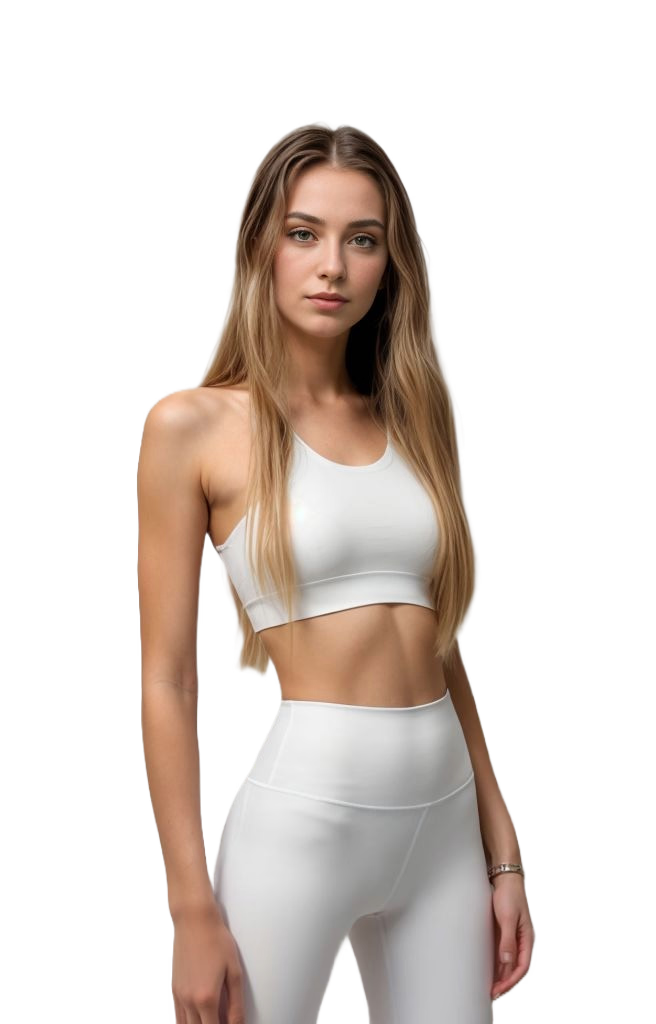

Shopify Virtual Try-On

Why it matters

  • Higher PDP engagement time and gallery interactions
  • Fewer size/fit objections → fewer returns
  • Visual UGC moments: shoppers share what they tried on

How it works

Embed button icon

1. Embed

Embed a Try-On button on PDP

AI render generation

2. Render

Render on selected model/avatar with consistent lighting

Track analytics icon

3. Track

Track engagement in your analytics

Virtual Try‑On Quick Enable Guide

Scan each card—work left to right. Most stores go live in under 15 minutes.

Prerequisites

  • Active Shopify store & admin access
  • Product photos (1200–2000px long edge)
  • Credits: Text generation = 3, Image generation = 5
Tip: Use clear, well‑lit, front‑facing product photos for best realism.

Install the App

  1. Admin → Apps → Shopify App Store
  2. Search “VFit: AI Model Photos & Try‑On”
  3. Click Install & grant media permissions
Note: Trial credits let you test end‑to‑end before upgrading.

First‑time Setup

  • Connect products or upload images
  • Choose default model(s) & export size
  • Review credits / billing panel

Generate First Image

  1. Upload/confirm product photo
  2. Select model + pose/background
  3. Click Generate & review output
  4. Adjust & re‑generate if needed
Pro tip: Keep background & pose consistent across a collection.

Best Practices & Privacy

Best Practices

  • Consistent lighting & angles
  • On‑model images early in gallery
  • Track open → add‑to‑cart events
  • Provide multiple body types

Privacy & Safety

  • Show brief upload notice
  • No retention beyond render (if true)
  • Link full Privacy Policy
Reminder: Keep original high‑res product photos backed up; avoid regenerating from compressed thumbnails.

Custom create model quick guide

Follow these focused steps to create a custom model profile and generate your first on‑model image. Each card is a checkpoint—left to right.

Start Project

  • Open Create Model in the app.
  • Enter a clear internal project name.
  • Project groups all generations & history.

Changing the name later is cosmetic only.

Set Attributes

  • Age, Gender, Ethnicity, Body Shape.
  • Choose realistic targets for your audience.
  • Body shape + gender filters available poses.

Adjusting these later resets pending state.

Select Method

  • Text (3 credits) – quick concept.
  • Image (5 credits) – highest fidelity.
  • Pick early; switching invalidates prior setup.

Credits are checked before queueing.

Choose Pose

  • Scroll or use Load More for extra poses.
  • Match garment type (long dress → full length).
  • Consistency improves catalog cohesion.

Pose id stored with generation request.

Background (Optional)

  • Toggle solid color to unify collection.
  • Pick HEX or use eyedropper (desktop).
  • Leave off for natural lighting & shadows.

Color stored only if toggle enabled.

Provide Input

  • Image: upload clean, front view (under 8MB).
  • Text: concise garment + style adjectives.
  • Avoid trademarked logos in prompts.

Validation catches size & format issues.

Generate & Monitor

  • Click Generate – job queued immediately.
  • Status via socket: QUEUED → PROCESSING → DONE.
  • Refresh re‑subscribes if socket disconnects.

Credits only deducted once per accepted job.

Review & Attach

  • Open result; check fabric, proportions, background.
  • Approve & push to product media or keep internal.
  • Iterate with adjusted pose or prompt if needed.

History keeps previous attempts for auditing.

Tip: Batch similar garments (e.g. all tees) with the same pose & background first to establish a consistent visual style, then experiment on hero products.

Accessories Try‑On

Enable try‑on for accessories across your catalog. Choose from 16 curated models per accessory type and render with a scene background or a transparent background for clean overlays on your PDP.

Supported Accessories

  • Hats
  • Glasses
  • Shoes
  • Rings
  • Earings
  • Necklaces
  • Bracelets
  • Watches

Pick from 16 Models

  • Each accessory type offers 16 model options.
  • Preview styles quickly; swap models without re‑uploading.
  • Use consistent model sets across a collection for cohesion.

Model availability is tailored to the selected accessory type.

Background Options

  • Background: render on a curated scene for lifestyle context.
  • Transparent: export PNG with alpha to layer over your theme.
Tip: Use transparent background for variant thumbnails; use scene backgrounds for gallery hero images.

Quick Steps

  1. Select an accessory type (e.g., Hats or Glasses).
  2. Choose one of the 16 models for that accessory.
  3. Pick Background or Transparent.
  4. Generate, review, and attach to product media.

Smart Scan: Auto-Selection Guide

Smart Scan uses AI to automatically analyze your store and select the best product, model, pose, and background—perfect for quick demos or when you're unsure which options to choose.

AI Analysis

  • Analyzes up to 10 top-selling products
  • Uses computer vision for image quality
  • Considers product title and category

Prioritizes best flat-lay images automatically.

Auto-Selection

  • Chooses optimal model based on product type
  • Selects ideal pose to showcase product
  • Picks complementary background automatically

All selections are adjustable before generating.

Credits & Cost

  • 1 credit per Smart Scan analysis
  • Image generation requires additional credits per plan
  • Results ready in under 30 seconds

Great for demos and quick testing.

Best Use Cases

  • Quick client demonstrations
  • First-time user onboarding
  • Testing before bulk processing
  • When unsure of best options
95% faster than manual configuration—hours to seconds!
Learn More About Smart Scan

360° View: Interactive Product Guide

Create immersive 360° product experiences with AI-generated rotated views. Allow customers to explore products from all angles, increasing conversions up to 27%.

Generation

  • Upload 1 front image (required)
  • Optionally add back image for precision
  • AI generates 8 rotated views (45° increments)

8 credits per 360° project—includes all views.

Implementation Options

  • GIF Animated: Auto-rotating, instant integration
  • Interactive Viewer: Drag-to-rotate with zoom
  • Both generated from same 8 views

Choose based on desired user experience.

ROI Benefits

  • Up to 27% increase in conversions
  • 35% reduction in returns
  • Higher customer confidence
  • Longer time on product pages
Proven results: customers who interact with 360° views convert better!

Setup Requirements

  • GIF: works on any Shopify theme
  • Interactive: requires Shopify 2.0+ theme
  • 100% mobile-optimized
  • No specialized photography equipment needed

Setup in minutes vs hours of traditional 360° photography.

Learn More About 360° View

Troubleshooting & FAQ

Troubleshooting

FAQ